Point clouds
The Digital twin supports point clouds of your site as well as IFC models. Add them to the scene from the Models tab of the side panel, then frame, adjust and measure them like any other layer.
360 panoramas in E57 scans
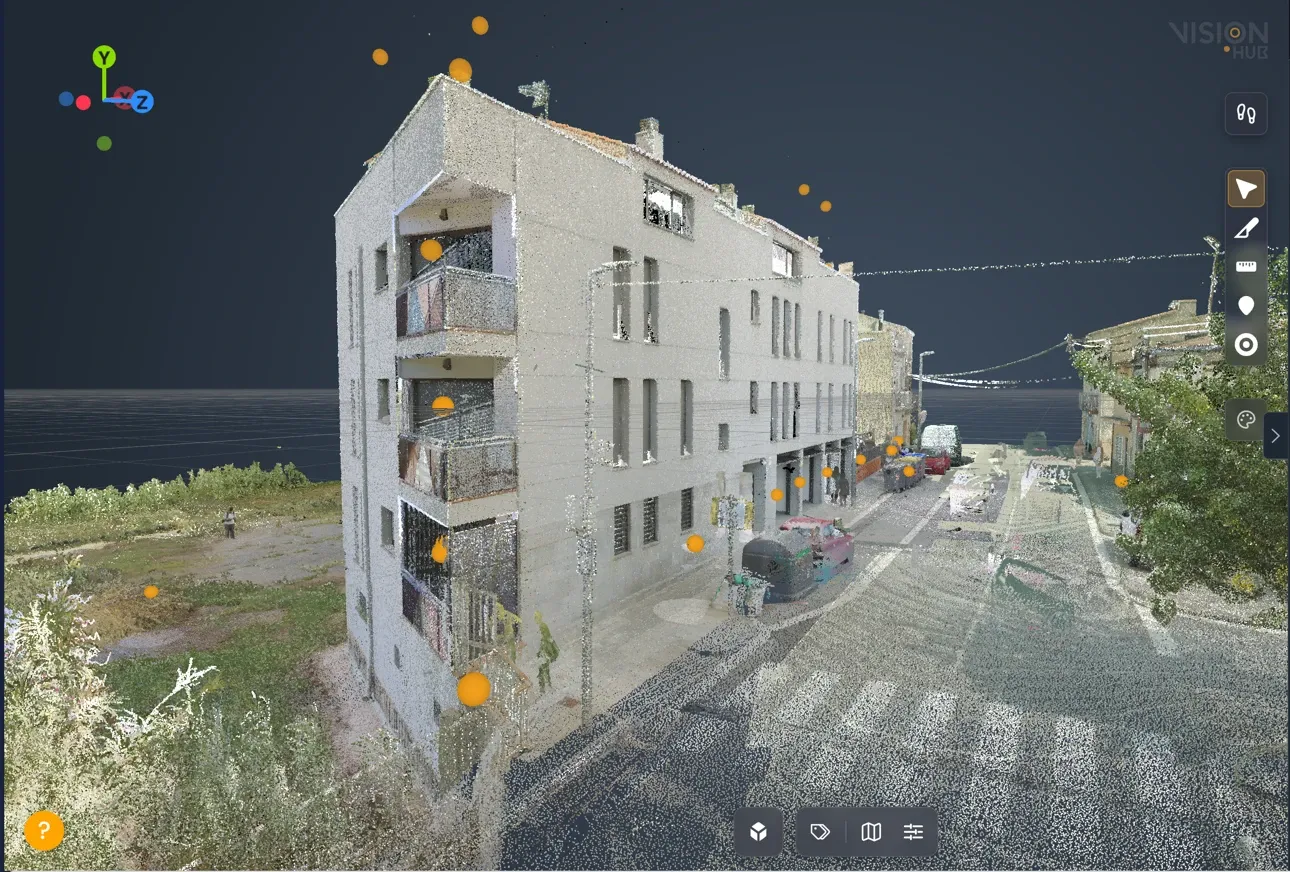
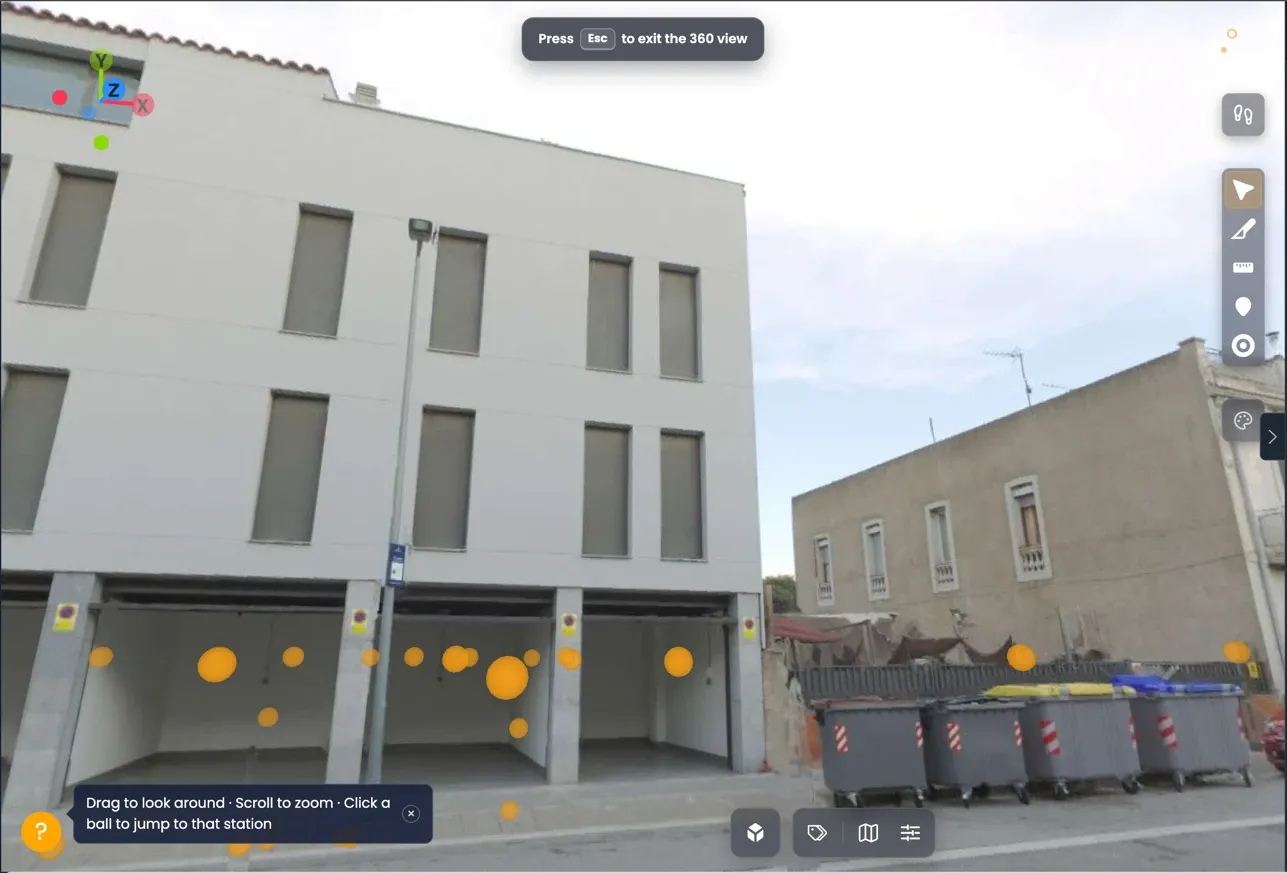
If your digital twin includes a point cloud from an E57 scan, VisionHub shows the spots where each capture was taken, the 360 stations. From any of them you can enter its panorama and see the site as it was photographed, and jump from one station to another.
Large E57 files are converted on the server before they can be opened; until then they can’t be added to the scene.
How to use it
- Open the Digital twin and add the point cloud to the scene.
- You will see the stations as semi-transparent balls, with their distance from you (the nearest ones appear).
- Click a ball to enter its 360 view.
- Drag to look around and use the wheel to zoom.
- Click another ball to jump to that station.
- Press Esc to leave and go back to the point cloud.
Settings
In the layer panel you can:
- Change the 360 opacity of the balls.
- Hide or show 360 stations.
The measurement tools also work on the panorama.
Gaussian Splatting
Besides IFC and point clouds, the Digital twin supports Gaussian Splatting models (.ply, .spz or .rad files): a photorealistic capture of your site. Add them from the Models tab of the side panel like any other layer, and filter them with the Gaussian Splatting category.
These models carry no IFC information, so the selection, measurement, section and visibility tools only work on IFC models.
Gaussian options
When you add a model, the Gaussian options section appears in the scene settings:
- If the model looks lying down or upside down, change the Vertical axis (Y or Z, up or down). It is saved for that model.
- Press Move / rotate and drag the gizmo in the viewer to place it where it belongs.
- Press Done or Esc to finish, or Reset to go back to the original position.
You can also turn on a Sky in the scene options to make the surroundings look more realistic.
See also Digital twin and Measurements.